Users
User list
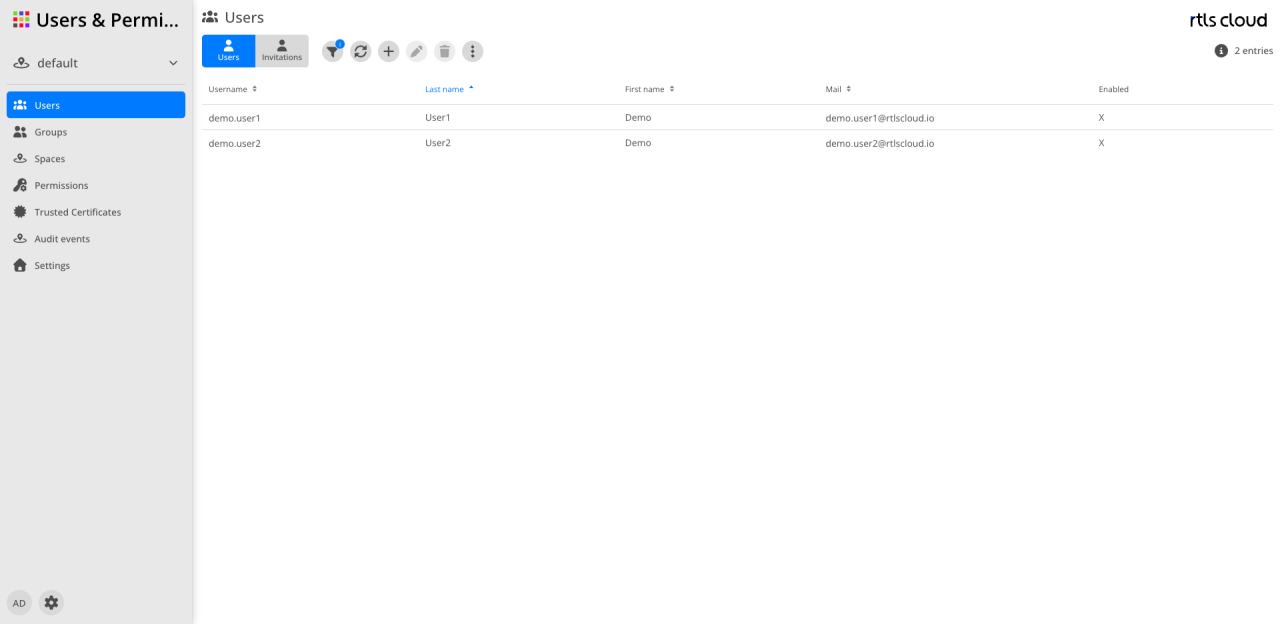
The list shows the accounts that hold permissions in the current tenant. A user with permissions in several tenants appears in each of them.
An invited user appears only once their invitation has been accepted and fully processed. Until then they are listed under Invitations.
Action bar
| Action | Description |
|---|---|
|
Reloads the list. |
|
Opens the invitation wizard, see Inviting rather than creating. |
|
Opens the selected account. Which fields are editable depends on your own role. |
|
Revokes every permission the account holds in this tenant. The account itself remains and is merely no longer shown here. |
|
Gives access to further administrative functions. |


Columns
| Column | Description |
|---|---|
User name |
The identifier the account signs in with — the user’s e-mail address. |
Last name |
The family name. The arrow indicates the current sorting. |
First name |
The given name. |
The address on file. |
|
Active |
An |
| Clicking a column heading sorts the list by it. |
Invitations
The second tab shows the invitations that are still open. Accepted and revoked invitations disappear from the list.
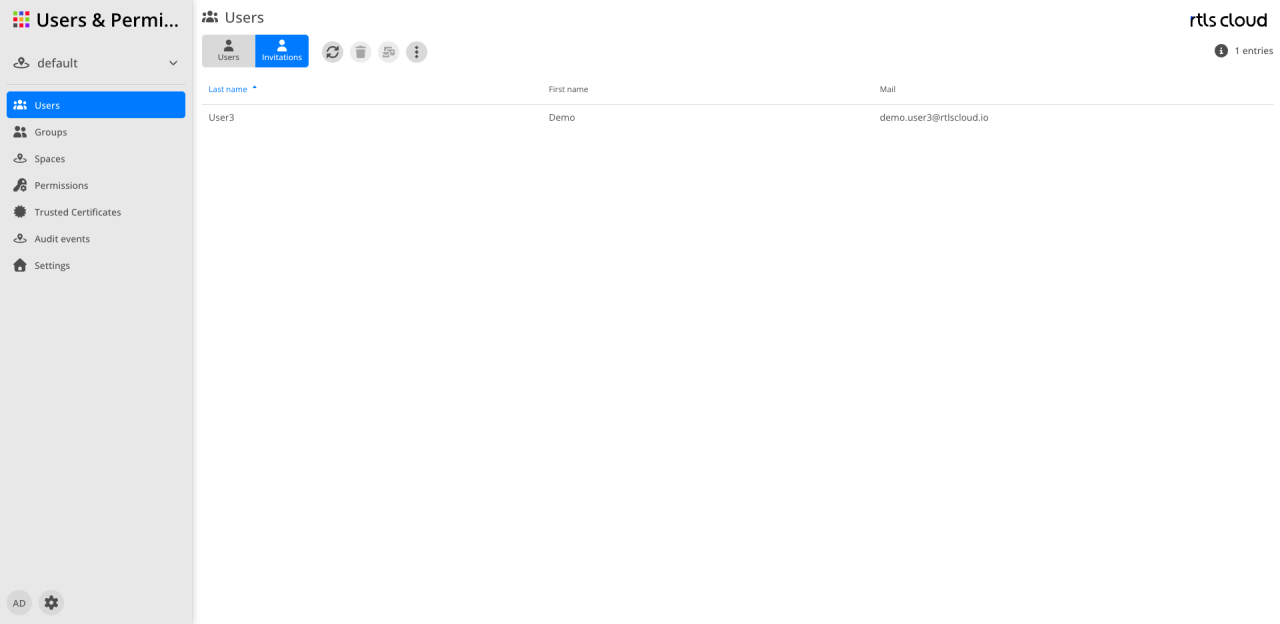
Action bar
There is no Add and no Edit here — an invitation is created in the wizard and not changed afterwards.
| Action | Description |
|---|---|
|
Reloads the list. |
|
Withdraws the invitation. The link becomes unusable. |
Resend invitation |
Sends the invitation to the same address again. |
|
The context menu of a row also holds Copy invitation link. |
Inviting rather than creating
A user is not created, it is invited. The  button therefore does not open
a create dialog but the wizard for an invitation. That is not a detour but the only way: an account
comes into being when the invited person accepts.
button therefore does not open
a create dialog but the wizard for an invitation. That is not a detour but the only way: an account
comes into being when the invited person accepts.
Hence the order that surprises the first time:
-
You invite, and while doing so you decide which permissions the account is to receive.
-
The invited person accepts — now the account exists.
-
Only once they have also set up their profile and password are the permissions granted and the account appears in the user list.
Further permissions are granted later not through a new invitation but through Permissions or a group.
The invitation dialog
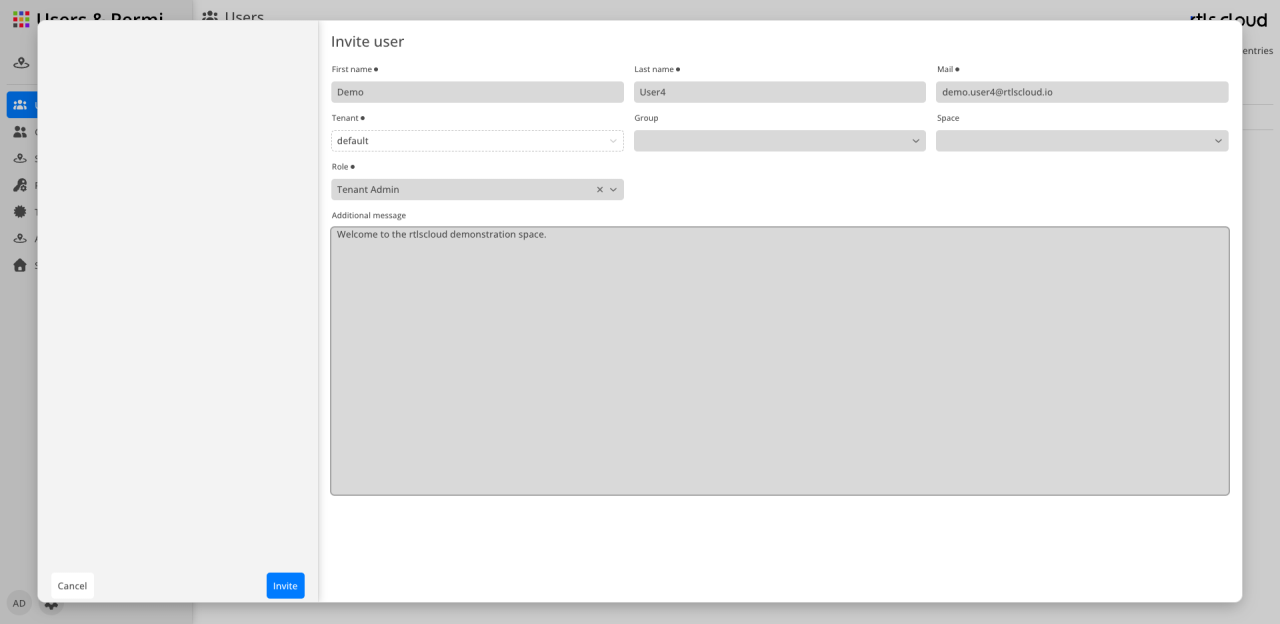
| Field | Mandatory | Description |
|---|---|---|
First name |
yes |
Given name of the invited person. |
Last name |
yes |
Their family name. |
yes |
The address the invitation is sent to. It also becomes the user name. |
|
Tenant |
yes |
Prefilled with the current tenant and then not editable. |
Space |
no |
Without a space the invitation applies to the tenant, with one only to that space. |
Role |
yes, unless a group |
The selection follows the space: without a space the tenant-level roles, with a space those of the space, see Roles. |
Group |
yes, unless a role |
Instead of a role: the invited person becomes a member of this group and receives its permissions. |
Additional message |
no |
Free text carried into the invitation. |
Role or group — one of the two has to be set. The wizard does not allow an invitation without any permission, because it would produce an account that can see nothing.
Finish sends the invitation as an e-mail to the given address.