Tags (Administration)
What This View is For
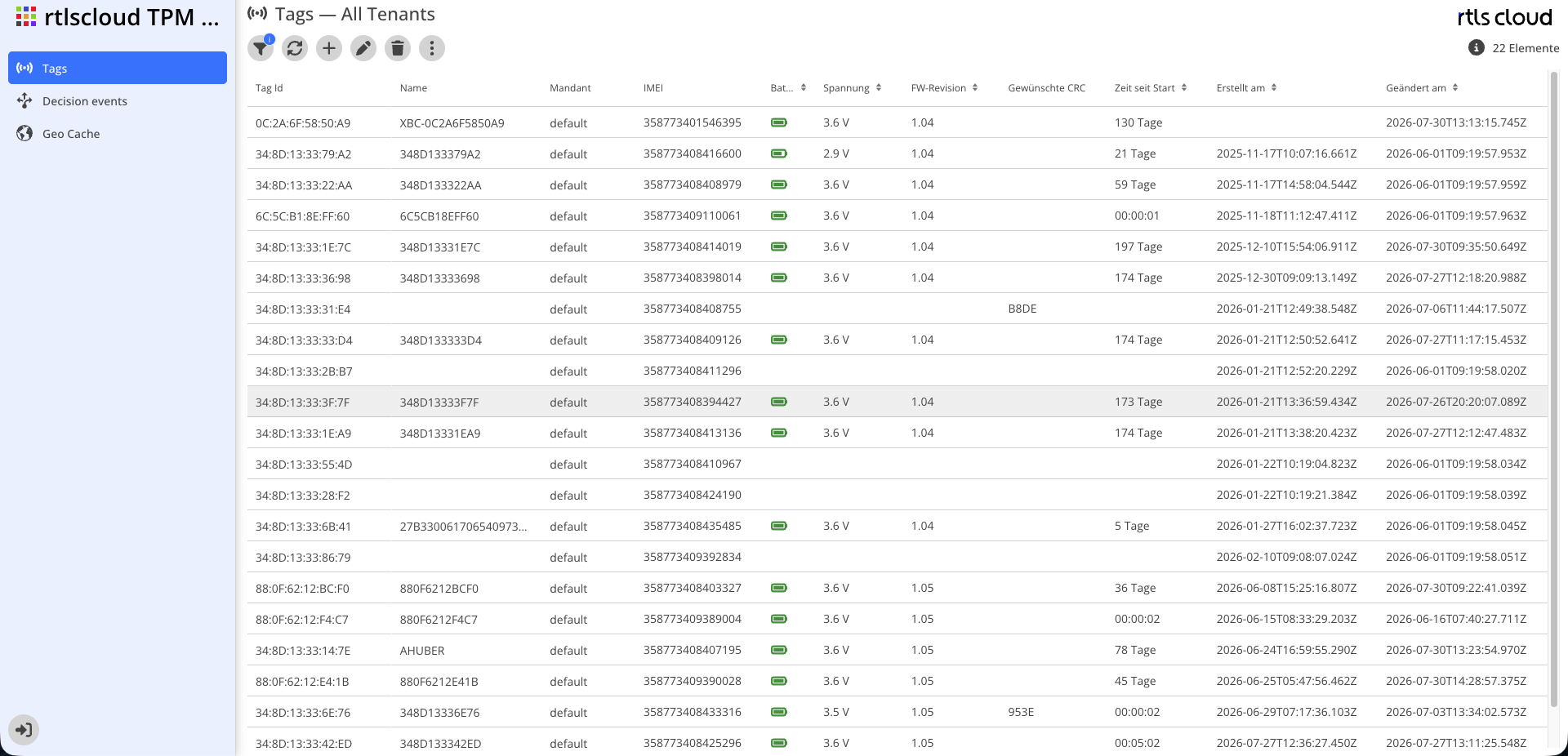
A device reporting for the first time lands in the default tenant and is therefore invisible in any tenant work area. This view is the only place it can be found.
The usual procedure for a new shipment: filter by IMEI or by Created at, select the devices and assign them to the tenant through the context menu. The tenant itself then takes over the group assignment.
Reference
| Module | Description |
|---|---|
|
Reloads the list |
|
Tag Id or name, tenant, IMEI, FW revision |
|
Creates a tag manually |
|
Opens the selected tag for editing |
|
Removes the record |
|
Number of tags shown, at most 1000 |


Display
The columns match those of Tags, plus:
| Column | Description |
|---|---|
Tenant |
The tenant the tag is assigned to. The default tenant means: not yet assigned |
Filter
| Filter | Description |
|---|---|
Search |
Tag Id or name |
Tenant |
Restriction to one tenant. The way to find every device not yet assigned |
IMEI |
Search by the cellular hardware identity. Useful when an IMEI list for a shipment is available |
FW revision |
Restriction to one firmware version. Useful for finding devices that need an update |
Assigning a Tenant
Select one or more tags and use Assign new Tenant. The tag is moved together with its complete history; recorded decisions are preserved.
Note: after the assignment the tag is not yet assigned to any group, so its events still do not reach any third-party system. That second step happens in the tenant’s work area — see First Steps.