Custom Locations
Reference
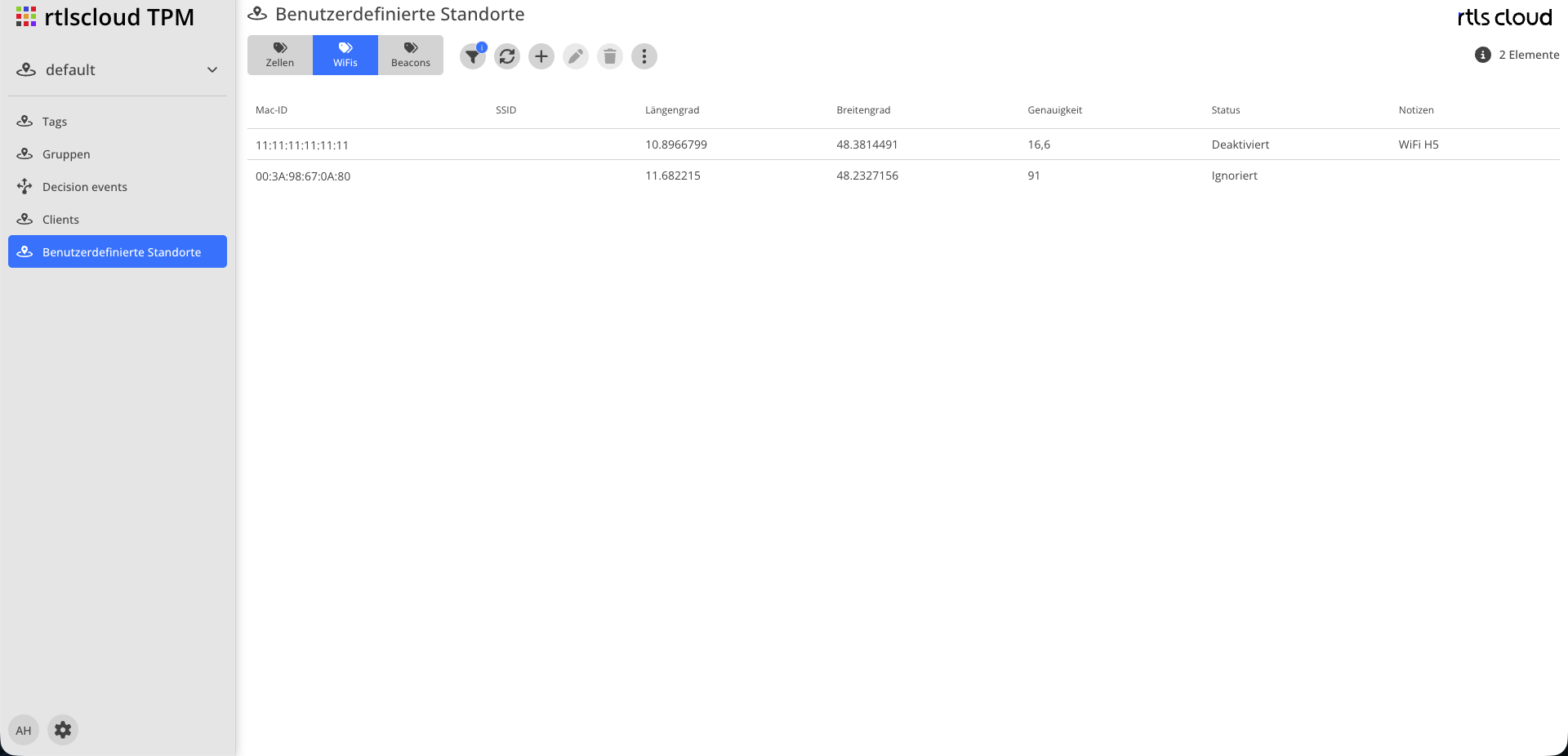
| Module | Description |
|---|---|
Tab |
Switches between Cells, WiFis and Beacons. All actions apply to the active tab |
|
Reloads the list |
|
Restriction by identifier |
|
Starts the wizard for creating an entry |
|
Opens the selected entry in the wizard |
|
Removes the entry |
|
Exports the entries of the active tab |
|
Number of entries shown |


A double click opens the entry with its position on the map.
Cells
A mobile network cell with a known position.
| Field | Type | Description |
|---|---|---|
Cell Id |
Number |
Identifier of the cell |
MCC |
Number |
Mobile country code |
MNC |
Number |
Mobile network code of the operator |
LAC |
Number |
Location area code |
Longitude |
Number |
Position of the cell |
Latitude |
Number |
|
Accuracy |
Number |
Radius in metres the position is valid for |
State |
Selection |
See State |
Notes |
Text |
Free text |
WiFis
A WiFi access point with a known position. The most common and most effective means of improving positioning accuracy.
| Field | Type | Description |
|---|---|---|
Mac Id |
Text |
Hardware address of the access point |
Name |
Text |
Network name (SSID), for recognition |
Longitude |
Number |
Position of the access point |
Latitude |
Number |
|
Accuracy |
Number |
Radius in metres |
State |
Selection |
See State |
Notes |
Text |
Free text |
Beacons
A BLE device with a known position.
| Field | Type | Description |
|---|---|---|
Mac Id |
Text |
Address of the device |
Name |
Text |
Display name |
Gateway |
Yes/No |
See Gateway |
Longitude |
Number |
Position of the beacon |
Latitude |
Number |
|
Accuracy |
Number |
Radius in metres |
State |
Selection |
See State |
Notes |
Text |
Free text |
Gateway
A beacon with Gateway = Yes is a device that sees other tags and lends its own position to every one it sees.
A single registered beacon thereby locates everything within its range — those devices need no online request at all. The typical use case is a fixed device at a gate, a ramp or a storage area.
As long as a tag is seen by a gateway, the application asks no online service for it. This is deliberate: a second, independently resolved position would contradict the first, with no rule for deciding which one is right.
State
| Value | Meaning |
|---|---|
Enabled |
The entry is used normally |
Disabled |
The entry is not used but is kept. Useful for not losing coordinates |
Ignored |
Blocklist. The observation is not processed locally at all — it is also not sent to an online service |
|
Ignored is the tool against mobile hotspots. A phone or a vehicle router looks like a fixed access point to a device and pulls every position towards wherever it was last resolved. Excluding it only locally is not enough — as long as it is still sent to the online service, it keeps distorting the result. That is why Ignored excludes it completely. Excluded access points are shown as excluded in Decision events, so their absence remains explainable. |
Creating and Editing
The wizard has two steps:
-
Enter data — the identifier and the master data of the entry.
-
Set position — place the point on the map and set the accuracy radius.
If the identifier already exists in the current tenant, the wizard reports this when saving — a second entry for the same identifier makes no sense.
The faster path often goes through Decision events: there you create an entry directly out of a concrete event, with its identifiers already filled in.