First Steps
Welcome to the Tracking Application! This guide is designed to make getting started as easy as possible and show how the most important functions of the application can be used in just a few steps. Whether you are opening the Tracking App for the first time or looking for quick orientation.
In the following, you will learn how to make basic settings and use the central areas of the interface. This way, you are perfectly prepared to exploit the full potential of the app.
The following topics are covered:

All of the following approaches can be found within the admin area.
Create Asset Type
In order to be able to localize an object, it requires various properties. One of these is the Asset Type. If this is not already existing and known, it must be created first.
3 properties are required to create the type.
| Field | Description | Example |
|---|---|---|
Type ID |
ID of the asset type |
27BUN341404124PO1141 |
Name |
Plain text name of the asset type |
PO1141 |
Category |
Predefined category |
Returnable Large Carrier |
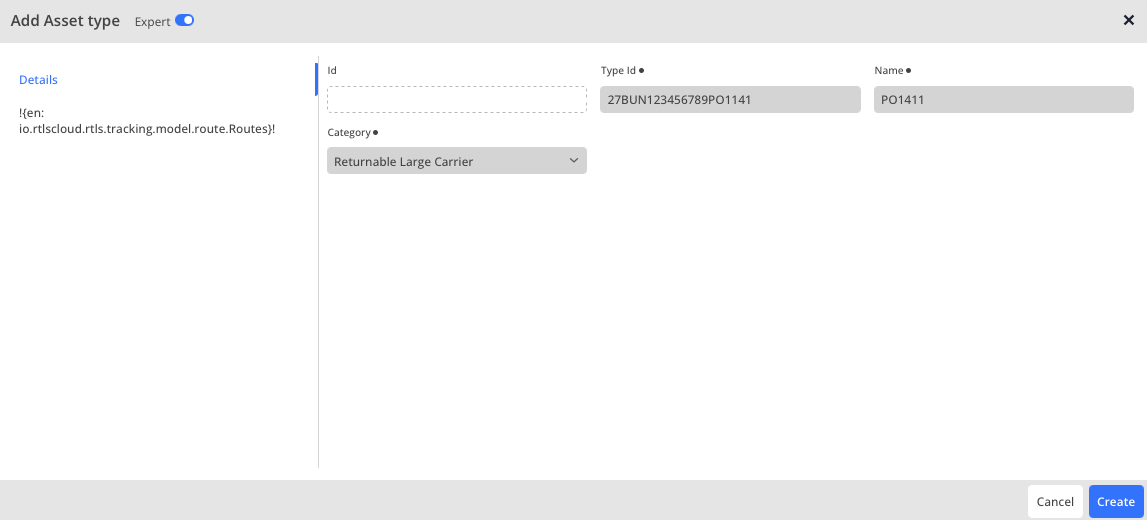
To save the type, please confirm with Create.
Create POI
So that a route can be configured between different points, an asset needs POIs (Points of Interest). To do this, the user must click on  to create a new one.
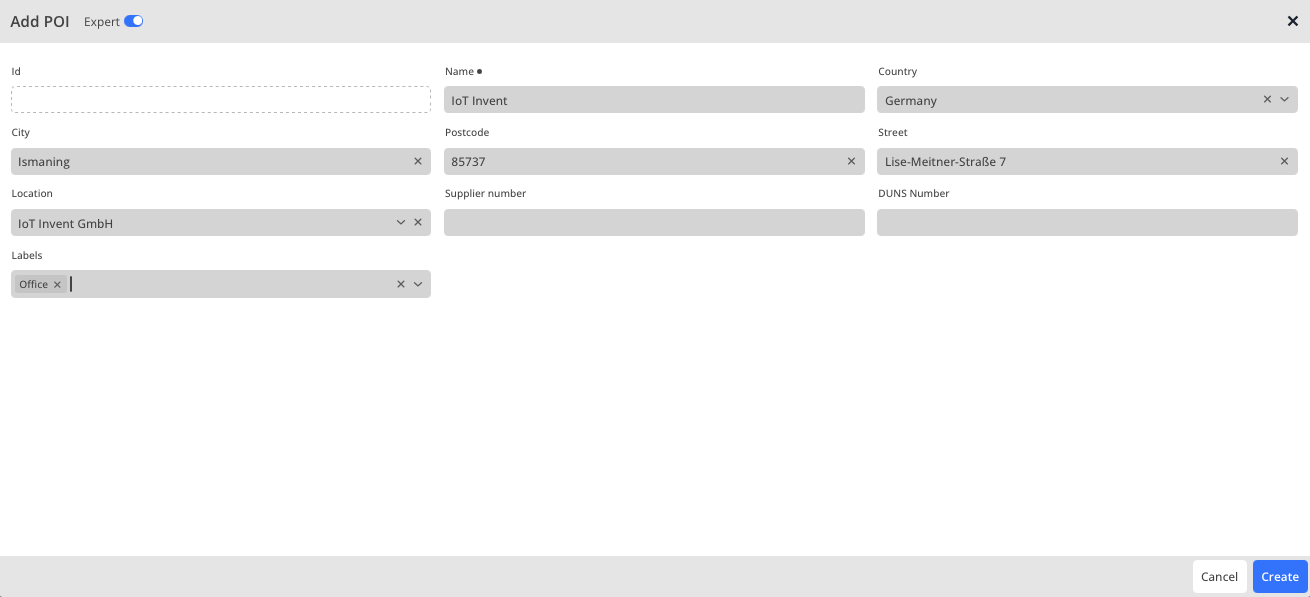
| Field | Description | Example |
|---|---|---|
Name |
Name of the POI |
IoT Invent |
Country |
Country where the POI is located |
Germany |
City |
City of the POI |
Ismaning |
ZIP code |
ZIP code of the POI |
85737 |
Street |
Address |
Lise-Meitner-Straße 7 |
Location |
Selection of the location within the space tree |
IoT Invent GmbH |
Supplier number |
Supplier number ID |
002545897 |
DUNS |
Unique identification number of the company |
12-578-9845 |
Labels |
Individual labels for the POI |
Office |
Afterwards, the creation must be confirmed with Create.
Create Route(s)
Since routes provide the possibility to track an asset in a predetermined movement, they must be created and configured in advance. To do this, a new route must be created using the icon.
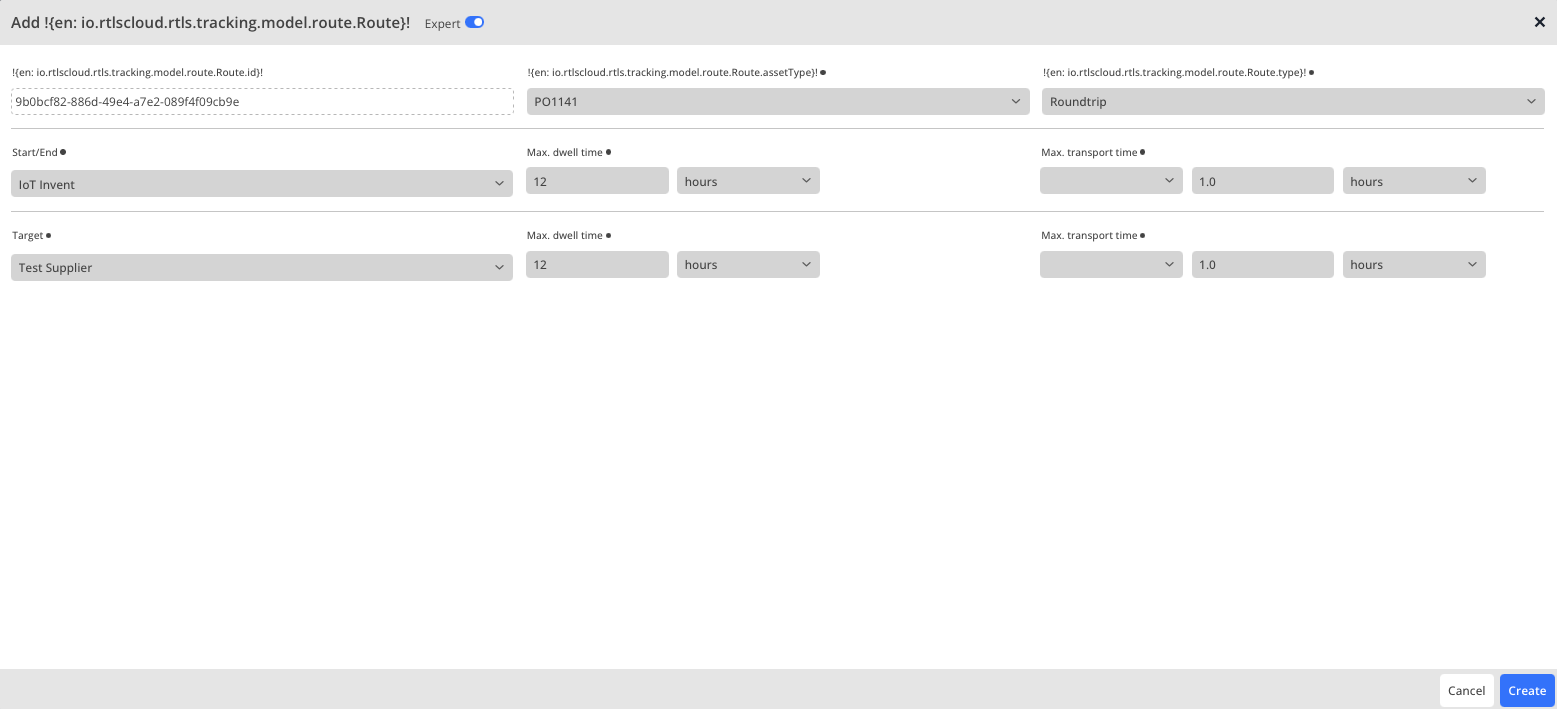
| Field | Description | Example |
|---|---|---|
Asset Type |
Selection of the asset type for the route |
PO1141 |
Type |
Route type selection |
Round trip |
Start/End |
Location to be used for starting and ending a round trip |
IoT Invent |
Destination |
The destination of the round trip before the return journey |
Test Supplier |
In this example, the dwell time is set to 12h on both sides, as this is only a demo. The same applies to the transport time. For further information, please access the Routes page.
Clicking on Create generates the route.
Create Asset(s)
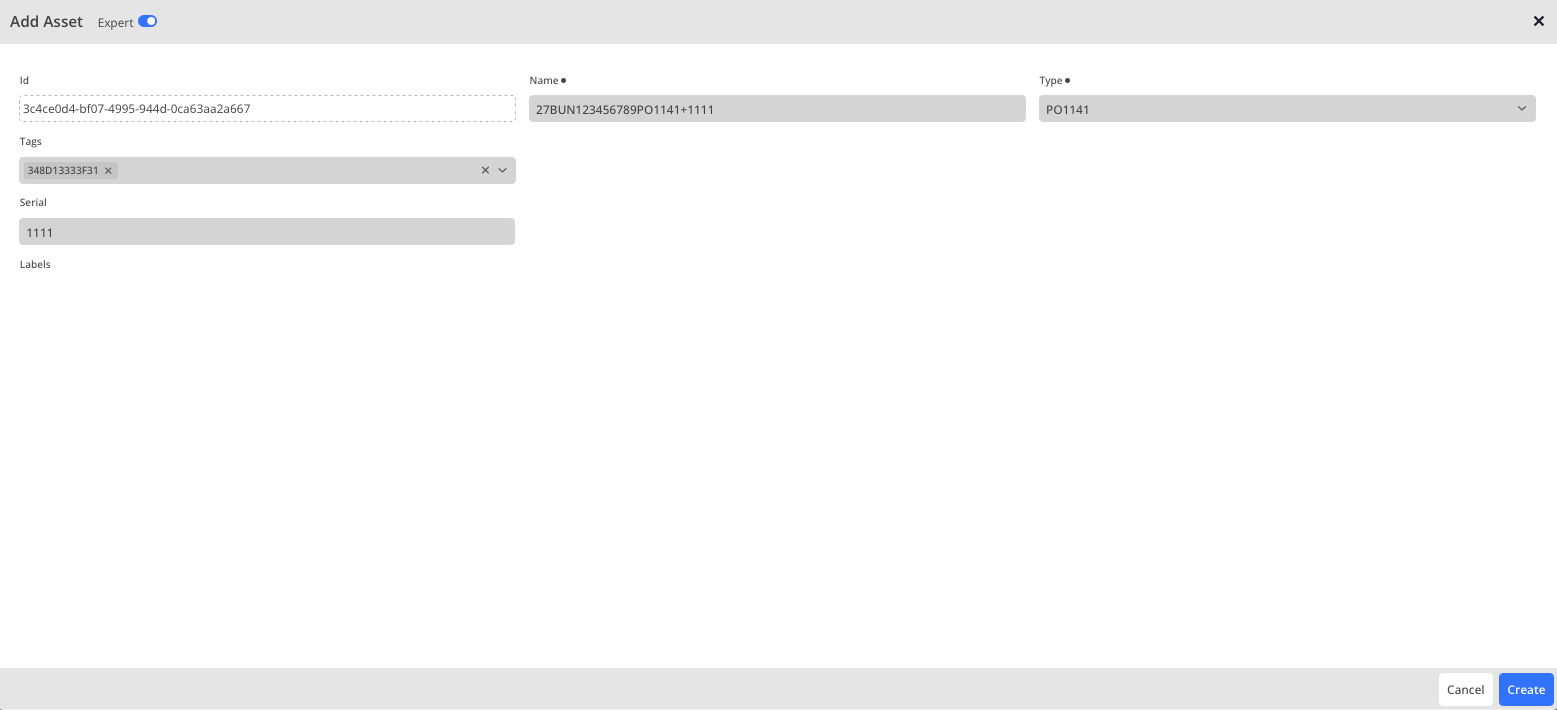
The final step involves creating the Asset, linking a BLE tag with an analog object.
As in the previous sections, the asset is created via .